Domain Controller Reboots – Lsass.exe crash

We recently ran into an issue where some of our domain controllers would get stuck in reboot loops in one of the child domains. The domain controllers were recently upgraded to 2022. Not all domain controllers in the domain would do it either; it was random, but once it started, it persisted. The only way we found to stop the reboot was to disconnect the NIC so the machine didn’t get any traffic.

Symptoms

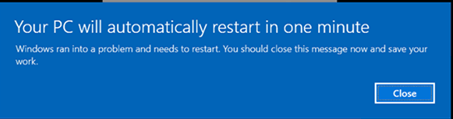
Domain controller would pop up a message saying this machine will reboot in 1 min.
In the event log, event ID 1000 thrown

Faulting application name: lsass.exe, version: 10.0.20348.4163, time stamp: 0xf055926b

Faulting module name: ntdll.dll, version: 10.0.20348.3932, time stamp: 0xc75bbaae

Exception code: 0xc0000005

Fault offset: 0x0000000000072eb0

Faulting process id: 0x330

Faulting application start time: 0x01dc3f6cd20cb038

Faulting application path: C:\WINDOWS\system32\lsass.exe

Faulting module path: C:\WINDOWS\SYSTEM32\ntdll.dll

Report Id: 16d31b63-2138-4bea-9ac3-d19e62f7170b

Faulting package full name:

Faulting package-relative application ID:

Issue found

Opened a ticket with Microsoft to troubleshoot as everything we tried failed. Rebuilding the domain controllers would help for a short while, but the problem would resurface. After many memory dumps and sessions with tech support, we found the issue.

The problem was with a shortcut trust that was established 20+ years ago when the domain was created. This shortcut trust was missing the securityIdentifier attribute and, under very specific circumstances, would cause lsass to crash. This is an issue that Microsoft admitted is a known issue, but not many customers have created the perfect set of conditions to trigger the bug (lucky me!). It is an issue that started with 2022 and newer domain controllers.

To check for this issue, run the following command. You can also look using adsiedit connected to default naming context, trust will be in the system container.

ldifde -f c:\temp\trusts.txt -r “(&(objectClass=trustedDomain)(|(trustType=1)(trustType=2)))” -t 3268

Open the trusts.txt file which will output like below. Look for a securityIdentifier. If its missing that is a problem.

dn: CN=root.com,CN=System,DC=child,DC=root,DC=com
changetype: add
objectClass: top
objectClass: leaf
objectClass: trustedDomain
cn: root.com
distinguishedName: CN=root.com,CN=System,DC=child,DC=root,DC=com
instanceType: 4
whenCreated: 20020314230047.0Z
whenChanged: 20251014125300.0Z
uSNCreated: 18653
uSNChanged: 3818287685
name: root.com
objectGUID:: fGv6ZUgwSUCMfaf3FWIhYw==
securityIdentifier:: AQQABBAAAAUVAAAArEm1Z0g6xjUnNbxw
trustDirection: 3
trustPartner: root.com
trustType: 2
trustAttributes: 4194304
objectCategory: CN=Trusted-Domain,CN=Schema,CN=Configuration,DC=root,DC=com

The Solution

Simple. Delete the shortcut trust and add it back. This will create the missing security identifier and the reboots will stop. I deleted this in the middle of the day on a very busy domain with no issues. Auth will continue to function as you still have your trust chains to your root domain. In fact, one must wonder, why do we need this shortcut trust at all? Evaluate your environment and make the call.

Monitor Print Server Activity

I was recently approached by management and asked to monitor an older print server to see who was still using it.  They wanted a report that would show which users and machines were still using this print server so they could correct old printer mappings.  Well of course Microsoft gives us no easy way to do this out of the box so it was time to get creative.  Here is the method I used to enable logging and generate a nice pretty TPS report from the data.

Enable Print service logging on the print server
1. Open the event viewer
2. Expand application and service logs > Microsoft > Windows > PrintService
3. Right-click the operational log, click enable log.

Now that logging is enabled you will begin to see the logs fill up with print jobs (Event 307). I let this run for about a week so we could get plenty of data. You may need to adjust the size of the log because I found it filled up way too quickly. The default is 1MB which is stupid low.
Now on to generate a pretty report for these guys. As it turns out this sounds so easy but in fact is a PITA. You can export the log to CSV but there are several issues with this, the biggest one is it exports the users SID instead of username, which of course makes sense because we all know the SID for each user right? There are also several formatting issues with exporting to CSV and long story short, it just didn’t work, you’re welcome to try that on your own if you think I am crazy. What I really needed was a way to pull the XML params out of the detail section of each event and export that to CSV. To accomplish this we turn to our friend, Powershell.

$PrinterList = @()
$StartTime = "04/10/2014 12:00:01 PM"
$EndTime = "04/18/2014 6:00:01 PM"
$Results = Get-WinEvent -FilterHashTable @{LogName="Microsoft-Windows-PrintService/Operational"; ID=307; StartTime=$StartTime; EndTime=$EndTime;} -ComputerName "localhost"

ForEach($Result in $Results){
$ProperyData = [xml][/xml]$Result.ToXml()
$PrinterName = $ProperyData.Event.UserData.DocumentPrinted.Param5
$hItemDetails = New-Object -TypeName psobject -Property @{
DocName = $ProperyData.Event.UserData.DocumentPrinted.Param2
UserName = $ProperyData.Event.UserData.DocumentPrinted.Param3
MachineName = $ProperyData.Event.UserData.DocumentPrinted.Param4
PrinterName = $PrinterName
PageCount = $ProperyData.Event.UserData.DocumentPrinted.Param8
TimeCreated = $Result.TimeCreated
}

$PrinterList += $hItemDetails
}

#Output results to CSV file
$PrinterList | Export-Csv -Path "C:PrintAudit.csv"


This script runs locally on the print server and pulls all the info I needed and dumps into a CSV that can then be fondled within excel.  Optionally, you can run this remotely by changing the –ComputerName param at the end of line 4.  Of course, you do need to modify the start and end times to your needs.

XenDesktop 7 BrowserName attribute incorrect

A user found this issue because on his mobile device (IPad) it said he was connected to an app that he did not open. Here is the scenario:

1. copy an existing app named “Calculator1″
2. Rename the copied app to “Calculator2″
3. The web interface and receivers will now show the new name. But when the user connects to calculator2 from an Ipad, goes to “switch apps” button on receiver, it will show connected to calculator1.

Looking into the problem further, I ran a Get-BrokerApplication -name calculator2.

ApplicationType : HostedOnDesktop
BrowserName : Calculator1
CommandLineExecutable : c:windowssystem32calc.exe
Name : Calculator2
PublishedName : Calculator2

This appears to be a bug in XenDesktop 7.  Whenever you copy or rename an app it does not update the BrowserName attribute to the new name.  To fix this you can run the below PowerShell script from a DDC.  This script will make the BrowserName match what is set for PublishedName for all apps in your farm/site.


Import-Module Citrix.XenDesktop.Admin
Add-PSSnapin Citrix.*
$apps = get-brokerapplication
foreach ($app in $apps){
$appname = $app.Name
Set-BrokerApplication -Name $appname -BrowserName $appname
}


Set DNS and Hostname on all ESXi Hosts in a Cluster

This script can be used to configure DNS settings on each host in the cluster.  It will set the DNS Server addresses and will also set the hostname to match what was used when adding it to vcenter.  If you added the host to vcenter by IP then you will want to comment that section out.

As with any VMWare script, you will need the latest version of VMWare PowerCLI installed to run this.

 
Connect-VIServer vcenter.domain.com
$Cluster = "Clustername"
$ESXHosts = Get-Cluster $Cluster | Get-VMHost

ForEach ($ESXHost in $ESXHosts){

#Set DNS Servers
Get-VMHost | Get-VMHostNetwork | Set-VMHostNetwork -DnsAddress [8.8.8.8],[9.9.9.9]

#Set DNS domain and search domains
Get-VMHost | Get-VMHostNetwork | Set-VMHostNetwork -Domain domain -SearchDomain domain.com, child1.domain.com, child2.domain.com

#Get hostname from vcenter, set Hostname
$hostnamearray = $ESXHost.name.split(".")
$hostname = $hostnamearray[0]
Get-VMHostNetwork -VMHost $ESXHost | Set-VMHostNetwork -HostName $hostname 
}